¶ Complete Bitwarden Vaultwarden Tutorial
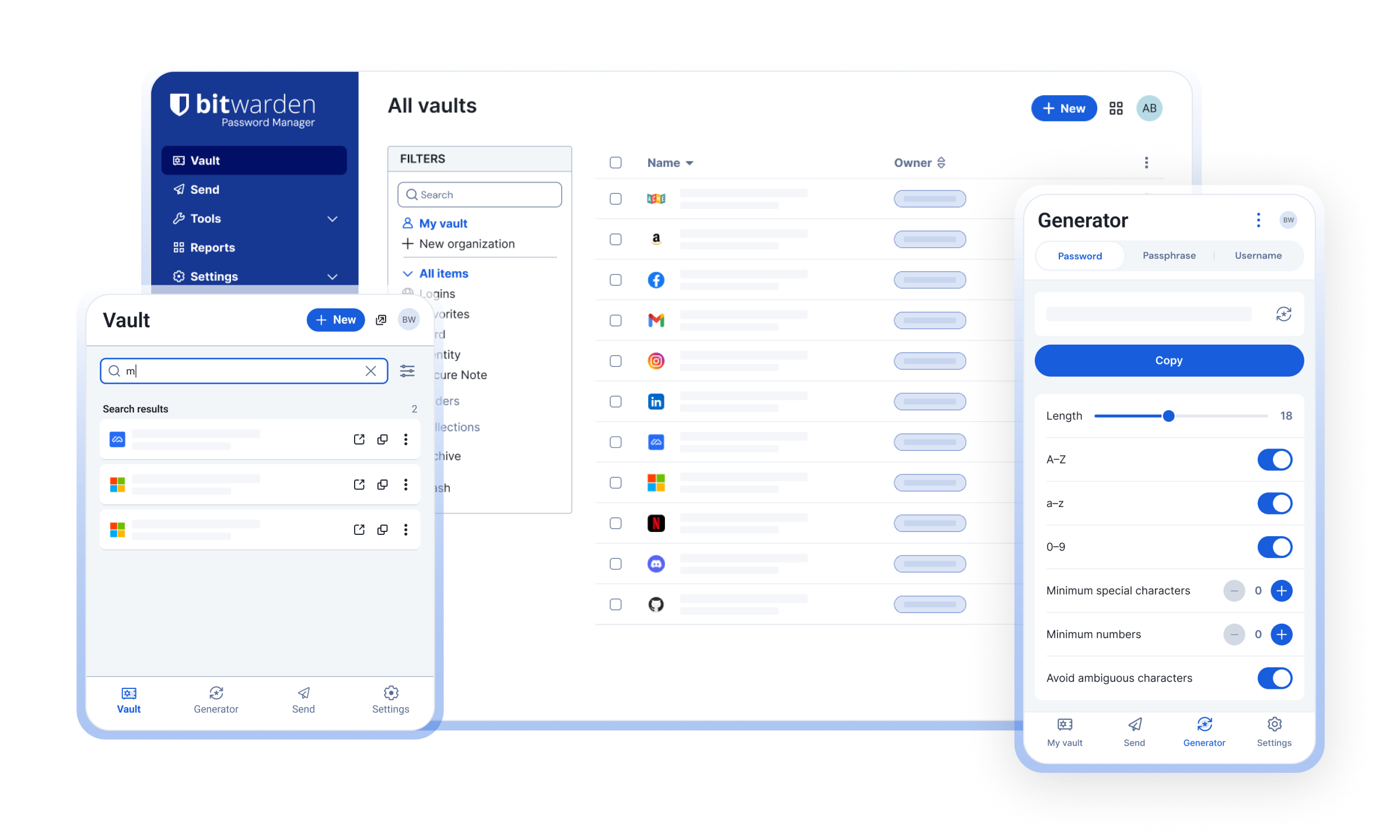
¶ What is Vaultwarden

An alternative server implementation of the Bitwarden Client API, written in Rust and compatible with official Bitwarden clients, perfect for self-hosted deployment where running the official resource-heavy service might not be ideal.
¶ Concepts in Vaultwarden
Organizations: enable secure sharing of logins, notes, cards, and identities between users, functioning as shared folders for teams or families. Organizations allow for managed access via collections, where items are owned by the organization rather than individuals.

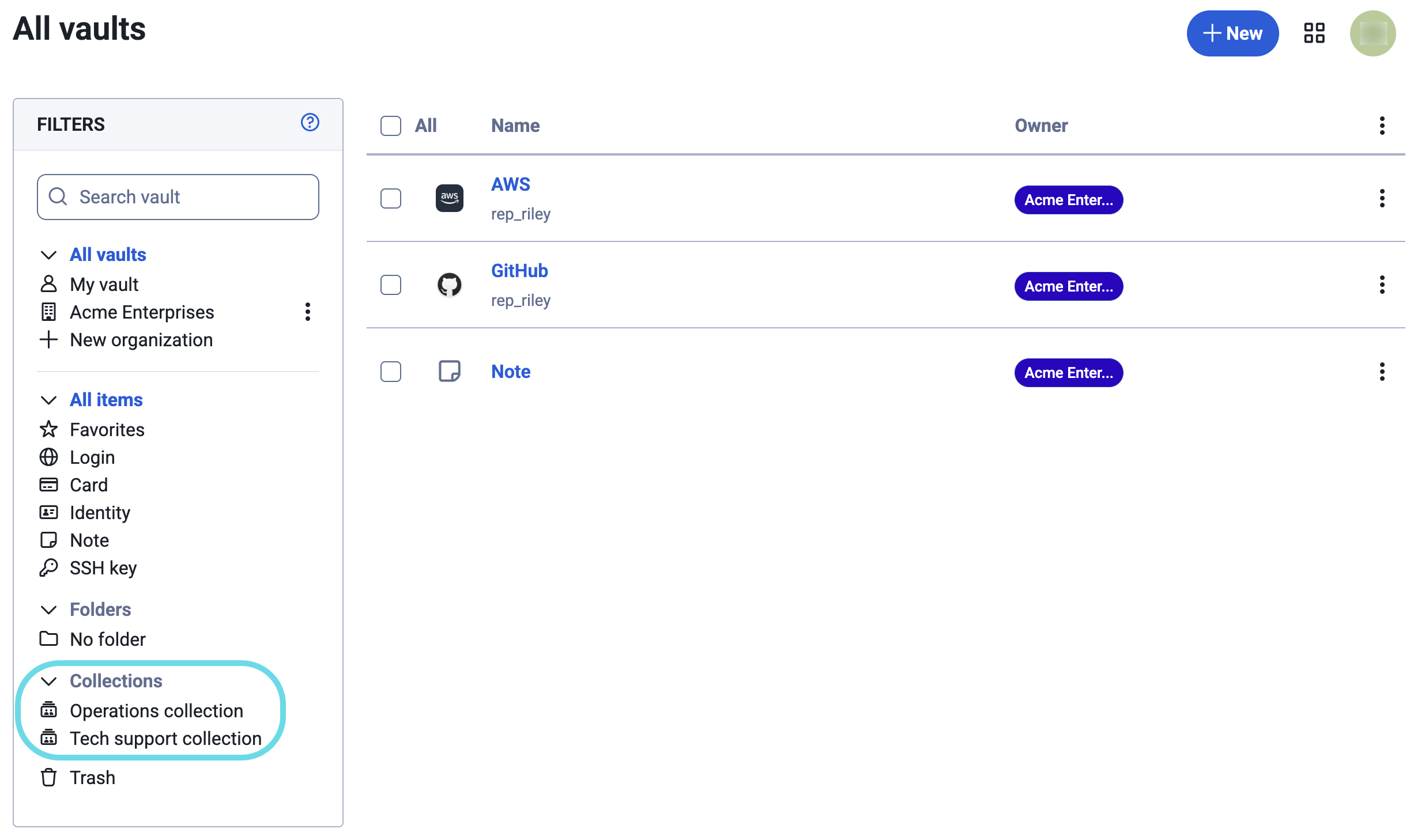
Collections: are the primary way to organize and share items (logins, notes, cards) among members of an Organization. They function like "shared folders" with granular access permissions.
Groups: Controls whether group support is enabled for organizations
This setting applies to organizations.See more: https://bitwarden.com/help/about-groups/
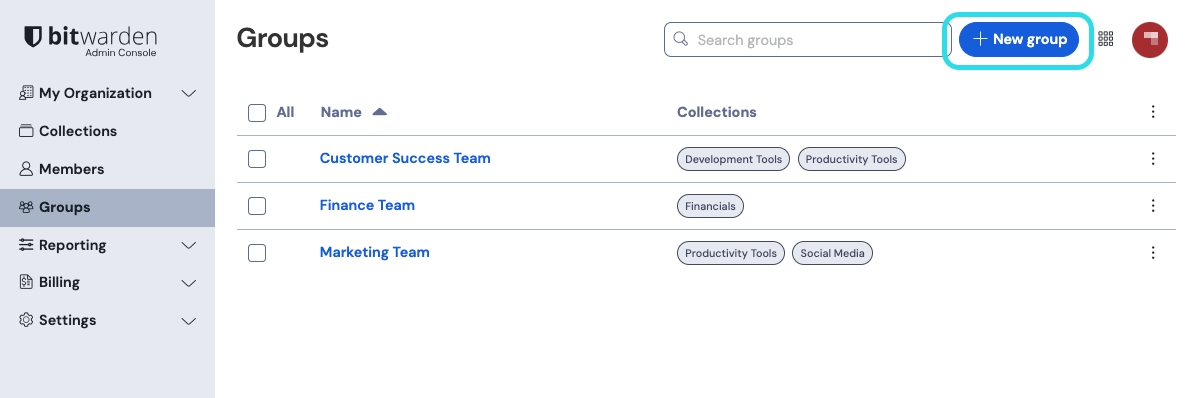
In Vaultwarden is disabled by default because this is a beta feature, it contains known issues!
If you still want to enable this feature, add this environment variable.
ORG_GROUPS_ENABLED=true
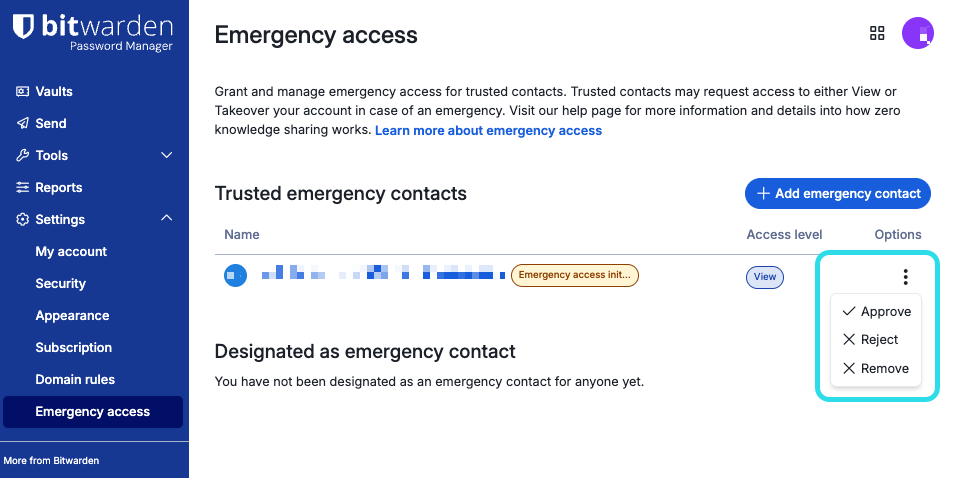
Emergency access allows you to designate and manage trusted emergency contacts, who can request access to your vault in cases of emergency. Contacts can be granted either view or takeover user access, giving you control over what they can do if they ever need to step in:
1) View: When an emergency access request is granted, this user is granted view/read access to all items in your individual vault, including login items' passwords and attachments.
2) Takeover: When an emergency access request is granted, this user must create a master password for permanent read/write access to your vault. This will replace your previous master password and remove any two-step login methods that were previously set up.
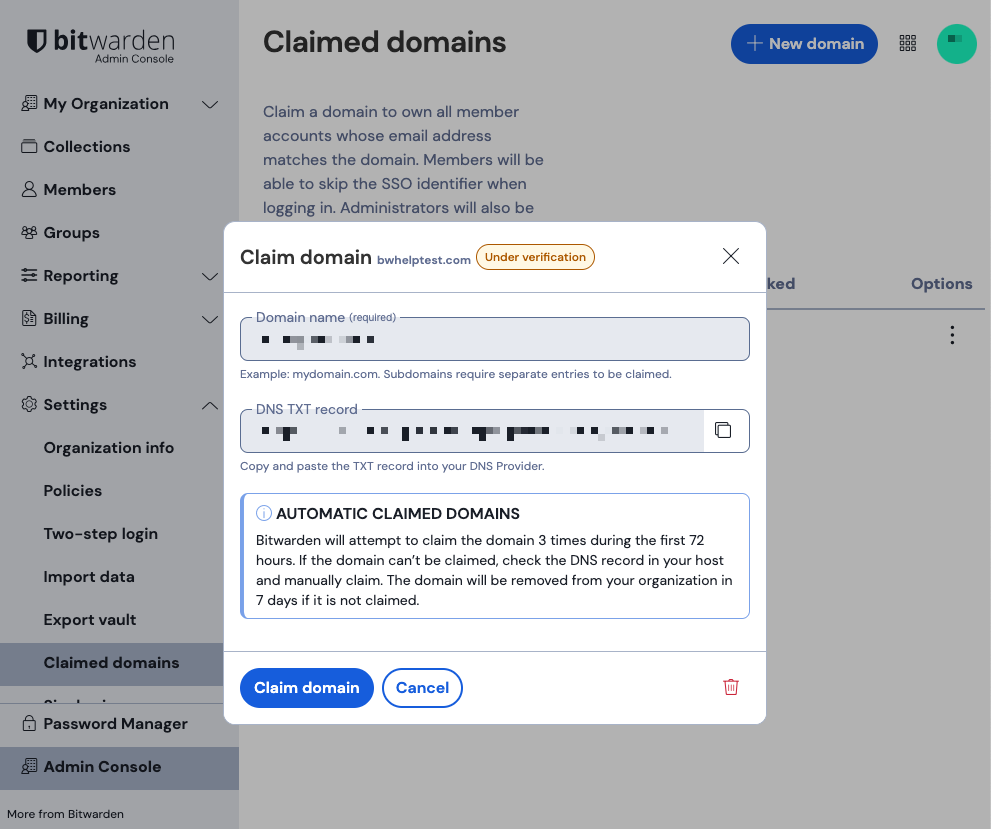
Claimed Domains: Enterprise customers can claim domain (eg. mycompany.com) ownership for their organizations with a valid and unique-to-Bitwarden DNS TXT record. When you claim a domain, your organization gains additional controls over accounts with matching email addresses.
Administrator Access: By default, organization owners and administrators can see all collections in the Admin Console, but they only appear in their personal "My Vault" if access is explicitly granted or if the "Access all collections" option is checked in the member's profile.
What are Organizations in Bitwarden and why should you use them?
https://bitwarden.com/blog/what-are-organizations-in-bitwarden-and-why-should-you-use-them/
¶ Instalation with Docker
¶ Create directory, compose.yml and .env files
mkdir -p ~/docker/vaultwarden/;  cd ~/docker/vaultwarden/

cat << '_EOF_' > compose.yml
services:
  vaultwarden:
    image: vaultwarden/server:latest
    container_name: vaultwarden
    restart: unless-stopped
    volumes:
      - ./vw-data:/data
    ports:
      - ${EXPOSE_PORT_HTTP:-80}:80
    environment:
      DOMAIN: ${DOMAIN}           # Required when using a reverse proxy
      ADMIN_TOKEN: ${ADMIN_TOKEN} # Admin token for accessing the admin interface

      #SIGNUPS_ALLOWED: 'false'   # Uncomment to disable user signups
      #SIGNUPS_VERIFY: 'true'     # Verify their email address upon registration
      #SIGNUPS_DOMAINS_WHITELIST: 'google.com,yourdomain.com,anotherdomain.com'

      ORG_GROUPS_ENABLED: 'true'	# Beta feature

      # Database Settings (optional, defaults to SQLite if not set)
      DATABASE_URL: "postgresql://${DB_USER}:${DB_PASS}@db-pg:5432/${DB_NAME}"

      # SMTP Settings (optional, for email notifications)
      SMTP_HOST: ${SMTP_HOST}
      SMTP_PORT: ${SMTP_PORT}
      SMTP_SECURITY: ${SMTP_SECURITY}
      SMTP_USERNAME: ${SMTP_USERNAME}
      SMTP_PASSWORD: ${SMTP_PASSWORD}
      SMTP_FROM: ${SMTP_FROM}
    depends_on:
      db-pg:
        condition: service_healthy

  db-pg:
    image: postgres:16-alpine
    container_name: vaultwarden-db-pg
    restart: unless-stopped
    volumes:
      - ./pg-data:/var/lib/postgresql/data
    environment:
      POSTGRES_DB: ${DB_NAME:-vaulwaden}
      POSTGRES_PASSWORD: ${DB_PASS:?database password required}
      POSTGRES_USER: ${DB_USER:-vaulwarden}
    healthcheck:
      interval: 30s
      retries: 5
      start_period: 20s
      test:
      - CMD-SHELL
      - pg_isready -d $${POSTGRES_DB} -U $${POSTGRES_USER}
      timeout: 5s
_EOF_

cat << '_EOF_' > .env
DOMAIN='https://vault.yourdomain.com'
ADMIN_TOKEN='$argon2id$v=19$m=65540,t=3,p=4$bXBGMENBZUVzT3VUSFErTzQzK25Jck1BN2Z0amFuWjdSdVlIQVZqYzAzYz0$T9m73OdD2mz9+aJKLuOAdbvoARdaKxtOZ+jZcSL9/N0'

# Database connection
DB_NAME=vaulwarden
DB_USER=vaulwarden-user
DB_PASS=vaulwarden-password

## Expose ports
EXPOSE_PORT_HTTP=9900

# SMTP Host Emails are sent to
SMTP_HOST='smtp.gmail.com'
SMTP_PORT='587'
SMTP_SECURITY='starttls'
SMTP_USERNAME='your-gmail-account@gmail.com'
SMTP_PASSWORD="xxxxxxxxxxxxxxxx'
SMTP_FROM='your-gmail-account@gmail.com'
_EOF_
¶ How to generate a secure ADMIN_TOKEN
# Using the Bitwarden defaults
echo -n "MySecretPassword" | argon2 "$(openssl rand -base64 32)" -e -id -k 65540 -t 3 -p 4
# Output: $argon2id$v=19$m=65540,t=3,p=4$bXBGMENBZUVzT3VUSFErTzQzK25Jck1BN2Z0amFuWjdSdVlIQVZqYzAzYz0$T9m73OdD2mz9+aJKLuOAdbvoARdaKxtOZ+jZcSL9/N0
Environment variables that can be used to customize the container - https://github.com/dani-garcia/vaultwarden/blob/main/.env.template
Compose Example - https://github.com/dani-garcia/vaultwarden/wiki/Using-Docker-Compose
Token Generate - https://github.com/dani-garcia/vaultwarden/wiki/Enabling-admin-page#secure-the-admin_token
Enabling admin page - https://github.com/dani-garcia/vaultwarden/wiki/Enabling-admin-pageWith SIGNUPS_ALLOWED=false how do I create my own account? - https://github.com/dani-garcia/vaultwarden/discussions/2387
Complete tutorial showing how to use a Gmail account to send emails - 🇧🇷 https://wiki.tiozaodolinux.com/Guide-for-Linux/Zabbix-Send-Mail-With-Google-SMTP
¶ Database Engine Selection
Vaultwarden supports three primary database backends via the DATABASE_URL environment variable:
1) SQLite (Default): Best for small-to-medium personal instances (e.g., <20 users). It is lightweight, performs well on local storage, and stores everything in a single db.sqlite3 file. Warning: Avoid using SQLite over network filesystems like NFS or SMB, as it is prone to corruption in those environments.
2) PostgreSQL / MariaDB / MySQL: Recommended for larger user bases, write-intensive workloads, or deployments requiring higher scalability. These engines handle concurrent connections better than SQLite but require managing a separate database container.
¶ Security and Encryption
Zero-Knowledge Architecture: Almost all data (passwords, notes, TOTP seeds) is encrypted on the client side before reaching the database. The server operator can only see metadata like email addresses and organization names.
At-Rest Protection: While the vault data is encrypted, the database itself is often not fully encrypted at the file level unless specified by the host OS or specific database features. For extra security, consider encrypting the entire storage volume or the host disk.
¶ Initialize containers and see the logs
docker compose up -d; docker compose logs -f --tail 10
Let's take a look at the running containers:
docker compose ps
NAME                IMAGE                                  COMMAND                  SERVICE       CREATED          STATUS                    PORTS
vaultwarden         vaultwarden/server:latest              "/start.sh"              vaultwarden   19 minutes ago   Up 19 minutes (healthy)   0.0.0.0:9900->80/tcp, [::]:9900->80/tcp
vaultwarden-db-pg   docker.io/library/postgres:18-alpine   "docker-entrypoint.s…"   db-pg         19 minutes ago   Up 19 minutes (healthy)   5432/tcp
¶ Use HTTPS - required
I use DNS registration on Cloudflare and Nginx Proxy Manager (NPM) configuration. Why? Because it's simple and safe.
¶ Loging into the new self-hosted server
Enter the URL https://vault.yourdomain.com in your browser - I use Google Chrome
¶ Optionally install the "Bitwarden Password Manager" extension
Then, on the login screen, you will have the following option:
In the web extension window, this option is not visible; use your mouse scroll wheel to scroll to the bottom of the window, and you will find this small option. Choose self-hosted and a window will open for you to enter the URL https://vault.yourdomain.com
Use the extension to save credentials and fill out forms quickly, without opening the web application.
¶ Admin Console

Go to the URL https://vault.yourdomain.com/admin/
Authentication key needed to continue
Please provide it below:
Enter admin tokenand paste your ADMIN_TOKEN
You can use /admin console to invite users.
¶ About Directory Connector - Active Directory (LDAP)

About Directory Connector - https://bitwarden.com/help/directory-sync/
LDAP or Active Directory - https://bitwarden.com/help/ldap-directory/
Bitwarden uses the Directory Connector app (desktop or CLI) to sync users and groups from Active Directory or LDAP-based directories. It enables automatic provisioning/deprovisioning for Enterprise/Teams plans, allowing organizations to manage user access without managing individual accounts manually.
Provisioned users will be issued invitations to join the organization, and can subsequently complete the normal onboarding procedure.
Directory Connector can be configured to remove users from your Bitwarden organization when they are disabled from the source directory. This won't delete their Bitwarden accounts, but they will lose all access to your organization.
¶ Key Aspects of Bitwarden LDAP Integration
Method: The Directory Connector software communicates with LDAP/AD to bring users into the Bitwarden organization, supporting both Active Directory and standard LDAP servers.
Sync Capabilities: Supports syncing users and groups, ensuring that when a user is removed from the directory, their access to the Bitwarden organization is revoked.
Not SSO: Directory Sync is for provisioning (managing accounts), not for authenticating users' logins (Single Sign-On - SSO). Users still use their master password to decrypt their vault.
Configuration: You must configure server hostname, port (e.g., 389/636), root path, and administrative credentials in the Directory Connector.
Security: Supports encrypted connections using LDAP over SSL (LDAPS) or STARTTLS.
¶ Steps for LDAP/Active Directory Setup
Obtain API Key: Get your organization API key from the Bitwarden web vault.
Download Directory Connector: Install the Desktop App or CLI.
Configure Settings: Enter your LDAP server details, including hostname, root path, and login credentials.
Test and Sync: Test the connection to ensure it works, then configure synchronization.
For automated provisioning, Bitwarden also supports SAML 2.0 or OpenID Connect for true single sign-on.
¶ Integrate with Authentik/LDAP
Although vaultwarden does not use LDAP for authentication, it is possible to integrate it with Authentik, which can use the LDAP database and also use TOTP (Time-based One-Time Password).
Authentik Official documentation - https://integrations.goauthentik.io/security/vaultwarden/
Vaultwarden Wiki - SSO using OpenID Connect - https://github.com/dani-garcia/vaultwarden/wiki/Enabling-SSO-support-using-OpenId-Connect
How I implemented Authentik - https://wiki.tiozaodolinux.com/Guide-for-Linux/Complete-Authentik-Tutorial
¶ References
¶ Where did I begin?
- 🇧🇷 Sua Segurança é uma DROGA | Gerenciadores de Senhas, 2FA, Encriptação - https://youtu.be/s7ldn31OEFc?si=7isbH7T3k_a-2tWg&t=1220
- 🇧🇷 Omarchy 2.0 - Bitwarden Self-Hosted / VaultWarden - https://akitaonrails.com/2025/09/10/omarchy-2-0-bitwarden-self-hosted-vaultwarden/
- 🇧🇷 Por que escolher o Vaultwarden - https://youtu.be/uYMFPTNatLs?si=U24OiaTfUKaYVXjI
- 🇺🇸 Self-hosting Vaultwarden: Step-by-Step Guide with Docker - https://deployn.de/en/blog/setup-vaultwarden/
- 🇺🇸 Secure Your Passwords with Vaultwarden - https://youtu.be/cT4Aeu1w5CQ?si=CrenfHEBDLosb_a5&t=399
- 🇺🇸 Customize Vaultwarden CSS - https://github.com/dani-garcia/vaultwarden/wiki/Customize-Vaultwarden-CSS
- 🇺🇸 A Better Vaultwarden Deployment - https://nachtimwald.com/2023/11/26/a-better-vaultwarden-deployment/
- 🇺🇸 Bitwarden Statement on Checkmarx Supply Chain Incident - https://community.bitwarden.com/t/bitwarden-statement-on-checkmarx-supply-chain-incident/96127
- 🇺🇸 Web browser extensions - https://bitwarden.com/download/
¶ Official Docker Image
- Which container image to use - https://github.com/dani-garcia/vaultwarden/wiki/Which-container-image-to-use
- Docker Image - https://hub.docker.com/r/vaultwarden/server
- Compose Example - https://github.com/dani-garcia/vaultwarden/wiki/Using-Docker-Compose
- Token Generate - https://github.com/dani-garcia/vaultwarden/wiki/Enabling-admin-page#secure-the-admin_token
- Enabling admin page - https://github.com/dani-garcia/vaultwarden/wiki/Enabling-admin-page
¶ Bitwarden references used
- LDAP or Active Directory - https://bitwarden.com/help/ldap-directory/
- Directory Connector - https://bitwarden.com/help/directory-sync/
- Password Manager Overview - https://bitwarden.com/help/password-manager-overview/
- Collection Permissions - https://bitwarden.com/help/collection-permissions/
- Permission inheritance on nested collection - https://github.com/dani-garcia/vaultwarden/discussions/3814
¶ Videos
- 🇺🇸 Bitwarden Brilliance: SSO and Directory Connector - https://youtu.be/GmSRVsQMz9E?si=P8uE5I0gZQWMFBrg
- 🇺🇸 Bitwarden Brilliance: User/Group Automation and APIs - https://youtu.be/8ie2G4C06Qo?si=WS35JLIqsRl_yY8E&t=684
- 🇺🇸 Vaultwarden - Open Source, self hosted - https://youtu.be/mq7n_0Xs1Kg?si=1TGLrR4O5w47pXE5
- 🇧🇷 Principais Funções do Bitwarden - https://youtu.be/Zv7NkLyx4wk?si=_z1klQUSNy0icUe6
- 🇧🇷 NUNCA MAIS ESQUEÇA SUAS SENHAS - 1. https://youtu.be/90ghKbBJZiA?si=puLzmcHiybFp4QN1&t=69
- 🇧🇷 TUTORIAL BITWARDEN - https://youtu.be/UH7D1vksIkg?si=yukFf44wKOXoAGqc&t=347
- 🇧🇷 APRENDA A USAR O GERENCIADOR DE SENHAS - https://youtu.be/AcpAUWMQ3LA?si=qctykqAE3trF5Mn4&t=170
- 🇧🇷 EXTENSÃO BITWARDEN apresenta FRAGILIDADE - https://youtu.be/rVB0UzpsEBM?si=xUYqp8Ge7T9LrSA4
- 🇧🇷 Vaultwarden: Guia de Usabilidade para Gerenciar suas Senhas! - https://youtu.be/8fGHX9-8iH4?si=J72fjv4gHqCc2zrf
- 🇧🇷 Tutorial: Configurando Seu Próprio Gerenciador de Senhas com Docker e Vaultwarden - https://youtu.be/QEHJPmQSu80?si=WnzWwxH9XGzgdJVj